
If you’re a freelancer or small business owner, creating professional invoices is one of those tasks that should take two minutes — not twenty. Yet most people either fumble together something in Word, pay for software they barely use, or settle for a tool that slaps its watermark all over their invoice.
There’s a better way. In this guide we’ll walk through exactly how to create a professional invoice for free — no sign-up, no watermark, no monthly fee.
What Makes an Invoice “Professional”?
Before we get into the how, it’s worth understanding what separates a professional invoice from a rough one. A professional invoice includes:
- Your business name and logo — establishes your brand and looks credible
- A unique invoice number — essential for your records and your client’s accounting
- Issue date and due date — sets clear payment expectations
- Itemized line items — breaks down exactly what you’re billing for
- Tax calculation — automatically calculated so you never get the math wrong
- Clear total — the number your client needs to pay, no ambiguity
- Payment terms — when and how you expect to be paid
- Notes section — for bank details, thank you messages, or payment instructions
Missing any of these makes your invoice look unprofessional and can delay payment. Clients — especially larger businesses — often have accounting systems that require all of these fields to process a payment.
Why Most Free Invoice Tools Fall Short
A quick Google search for “free invoice generator” returns dozens of options. Most of them have a catch:
- Watermarks — your invoice has their logo on it, making you look like you couldn’t afford proper software
- Sign-up walls — you have to create an account just to download your own invoice
- Feature limits — the free version only lets you send 3 invoices per month
- Upload to their servers — your client data and billing information is stored on their servers
None of these are acceptable for a professional running a real business.
How to Create a Free Invoice with SnapHQ
SnapHQ’s free invoice generator solves every one of those problems. Here’s exactly how to use it — step by step.
Step 1 — Open the Invoice Generator
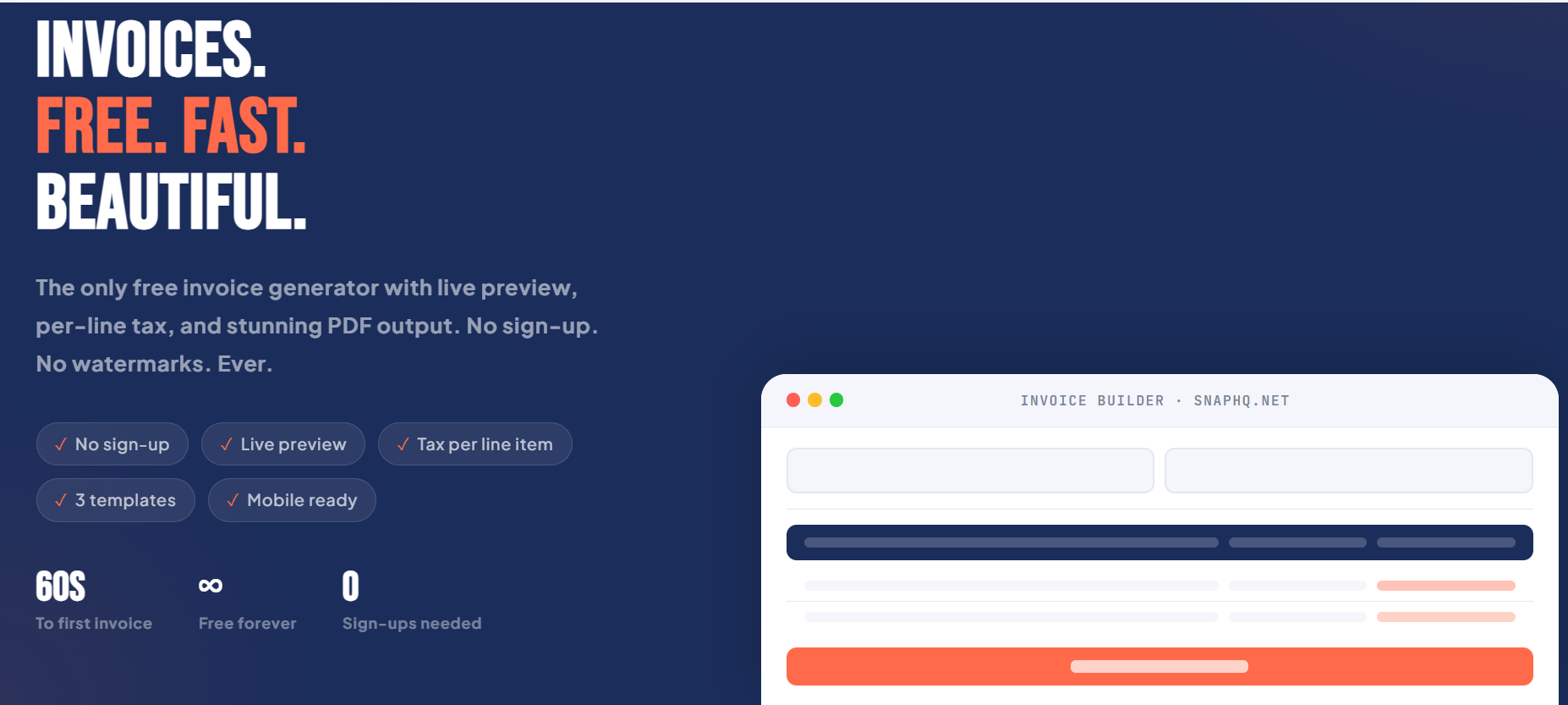
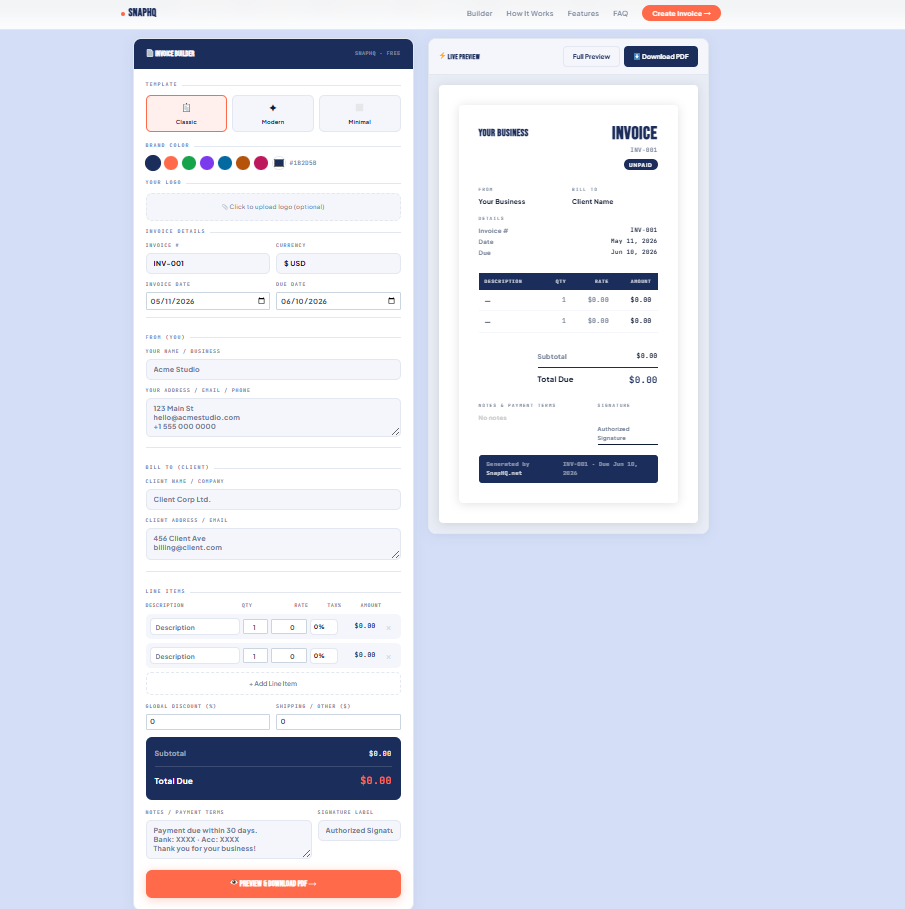
Go to snaphq.net/invoice-generator. The tool loads instantly — no account, no sign-up, nothing to install. You’ll see a live preview that updates in real time as you fill in your details.
Step 2 — Add Your Business Information
Fill in your business name, address, email, and phone number in the “From” section. If you have a logo, click the logo upload button and add it — your invoice will display it at the top, giving it an instantly professional look.
Step 3 — Add Your Client’s Details
Fill in your client’s name and address in the “Bill To” section. This is the information that appears on the invoice as the recipient.
Step 4 — Set Your Invoice Number and Dates
SnapHQ automatically generates an invoice number (INV-001) and sets today’s date. You can customize both. Set the due date — Net 30 (30 days from issue) is standard for most freelance work, though Net 14 or Net 7 are becoming more common for smaller projects.
Step 5 — Add Your Line Items
This is the core of your invoice. Add each service or product as a separate line item with:
- Description — what you did or what you’re selling
- Quantity — hours worked, units sold, or simply 1 for a flat fee
- Rate — price per unit or hourly rate
- Tax — SnapHQ calculates tax per line item automatically
The subtotal, tax, and total update instantly in the live preview as you type.
Example line items for a freelance web designer:
- Web design — homepage: 1 × $800
- Web design — interior pages (5): 5 × $200
- Stock photography license: 1 × $75
Step 6 — Add Payment Terms and Notes
Use the notes section to include:
- Your bank account details or PayPal address
- A thank you message (“Thank you for your business!”)
- Late payment policy (“Invoices unpaid after 30 days incur a 1.5% monthly late fee”)
- Any project-specific notes
Step 7 — Download Your PDF
Click Download PDF. SnapHQ generates a clean, professional PDF directly in your browser — no server upload, no watermark, no SnapHQ branding on your invoice. Just your invoice, exactly as it appeared in the preview.
Invoice Tips That Get You Paid Faster
Creating the invoice is the easy part. Getting paid on time is where many freelancers struggle. Here are the tips that actually work:
1. Send Invoices Immediately
Don’t wait until the end of the month or until you “have time.” Send your invoice the same day you complete the work. The longer you wait, the longer it takes to get paid — and the harder it becomes if there’s a dispute.
2. Use Shorter Payment Terms
Net 30 is standard but Net 14 or even Net 7 is increasingly common for freelance work. Many clients will pay within your stated terms — if you give them 30 days, they’ll use all 30. If you give them 14, they’ll often pay in 14.
3. Follow Up Without Embarrassment
If an invoice is overdue, follow up. A simple, professional email on day 31 saying “Just following up on Invoice #001 which was due yesterday — please let me know if you have any questions” is completely appropriate. Most late payments are just oversights, not intentional.
4. Include All Payment Methods
The more ways a client can pay you, the faster you’ll get paid. Include your bank account details, PayPal address, or payment link in the notes section of every invoice.
5. Number Your Invoices Consistently
Invoice numbers aren’t just for professionalism — they’re essential for your own records and for any disputes. Keep a simple system: INV-001, INV-002, INV-003. Never reuse numbers.
6. Keep Copies of Everything
Download every invoice you generate and save it with a clear filename: ClientName-INV001-2026.pdf. Keep a folder for each year. You’ll thank yourself at tax time.
What to Include in Invoice Notes
The notes section of your invoice is underused by most freelancers. Here’s what to put there:
For bank transfer payments:
Bank: Chase Bank | Account Name: Your Name | Account Number: XXXXXX | Routing: XXXXXX
For PayPal payments:
Please send payment to: yourname@email.com via PayPal (Friends & Family to avoid fees, or Goods & Services — your choice)
For late payment policy:
Payment is due within 30 days of invoice date. Invoices unpaid after 30 days will incur a late fee of 1.5% per month on the outstanding balance.
For a friendly touch:
Thank you so much for your business — it was a pleasure working with you! Please don’t hesitate to reach out with any questions.
Frequently Asked Questions About Invoicing
How often should I invoice clients?
For project-based work, invoice upon completion — or split it into a deposit invoice (50% upfront) and a final invoice (50% on delivery). For ongoing retainer work, invoice at the start of each month for that month’s services.
Do I need to charge sales tax on my invoices?
It depends on your location, your client’s location, and what you’re selling. In the US, services are generally not taxable in most states, but physical products and some digital goods are. Consult a tax professional for advice specific to your situation.
What’s the difference between an invoice and a receipt?
An invoice is a request for payment — sent before payment is received. A receipt is a confirmation of payment — sent after payment is received. Both are important for your records.
Can I use the same invoice template for all my clients?
Yes — SnapHQ saves your business information in the form so you don’t have to re-enter it every time. Just change the client details, line items, and invoice number for each new invoice.
What if a client disputes an invoice?
Keep your original project agreement, any emails discussing scope and price, and a copy of the invoice. A clear, itemized invoice is your best protection in a dispute — it shows exactly what was agreed and what was delivered.
Is SnapHQ’s invoice generator really free?
Yes — completely free. No sign-up, no credit card, no watermark, no limit on how many invoices you create. Try it here.
Ready to Create Your First Invoice?
Creating a professional invoice takes less than two minutes with the right tool. SnapHQ’s free invoice generator gives you everything you need — live preview, logo upload, line items, automatic tax calculation, and a clean PDF download — with no sign-up and no watermarks.
Create Your Free Invoice Now →
SnapHQ is a free suite of online tools for freelancers and small businesses. No sign-up. No watermarks. No catch. Explore all tools.
