Large images slow down websites, waste storage space, and take forever to upload. But compress them too aggressively and you end up with blurry, pixelated photos nobody wants to use. This guide shows you how to compress images the right way — reducing file size significantly while keeping your images looking sharp.
Why Image Compression Matters
Every extra megabyte on a webpage costs you visitors. Research consistently shows that pages taking longer than 3 seconds to load lose a significant portion of their audience. Images are typically the biggest contributor to page weight — often accounting for 60–80% of a webpage’s total file size.
Beyond websites, compressed images matter for:
- Email attachments — most email providers limit attachment sizes
- Social media uploads — platforms recompress images anyway, so optimizing first gives you better control
- Cloud storage — smaller files mean more images per gigabyte
- Sharing on mobile — large files eat into data plans and take longer to send
- E-commerce — product images need to load fast or shoppers leave
Types of Image Compression
There are two types of image compression, and understanding the difference helps you choose the right approach:
Lossy Compression
Permanently removes some image data to achieve smaller file sizes. JPEG and WebP use lossy compression. Done well, the quality loss is invisible to the human eye — but the file size reduction can be dramatic (often 60–90%).
Lossless Compression
Reduces file size without removing any data. The image is perfectly preserved. PNG uses lossless compression by default. File size savings are typically smaller (10–30%) but quality is completely maintained.
For most use cases — websites, social media, email — lossy compression at 75–85% quality gives you the best balance of small file size and great image quality.
How to Compress Images Free on SnapHQ
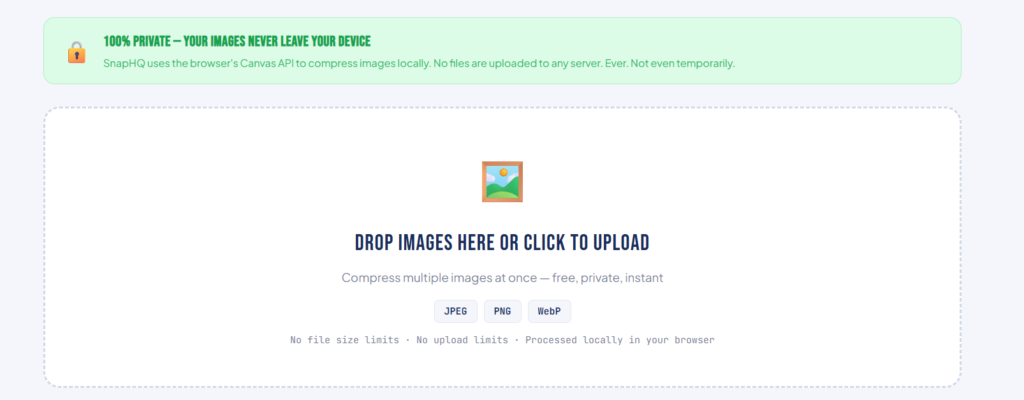
SnapHQ’s free image compressor runs entirely in your browser — your images are never uploaded to any server. Here’s exactly how to use it:
Step 1 — Open the Image Compressor
Go to snaphq.net/free-instant-image-compressor. The tool loads immediately — no account, no sign-up.
Step 2 — Upload Your Images
Drag and drop your images onto the upload zone, or click to browse and select files. You can upload multiple images at once for batch compression. Supported formats: JPEG, PNG, WebP.
Step 3 — Adjust the Quality Setting
Use the quality slider to control compression:
- 90–100% — minimal compression, almost identical to original, small file size reduction
- 75–85% — the sweet spot for most images, great quality with significant file size reduction
- 50–70% — noticeable quality reduction, good for thumbnails and previews
- Below 50% — heavy compression, visible quality loss, only use for very small thumbnails
For most website images and social media, 80% quality is the ideal starting point.
Step 4 — Choose Output Format
- Auto — SnapHQ chooses the best format automatically, converting PNGs to JPEG when that produces a smaller file
- JPEG — best for photos and complex images with lots of colors
- PNG — best for graphics, logos, and images with transparency
- WebP — best for web use, produces the smallest files, supported by all modern browsers
Step 5 — Compress and Download
Click Compress All. The tool processes your images instantly in the browser. Download individual images or click Download All to get everything at once.
Why “Runs in Your Browser” Matters
Most image compressors upload your files to their servers. That means:
- Your photos leave your device
- The company could potentially store or access them
- Compression speed depends on your internet connection
- Large files can fail to upload
SnapHQ’s image compressor uses the browser’s Canvas API to compress images locally. Your files never leave your device. This is especially important for:
- Client photos and confidential images
- Personal photos
- Business documents containing sensitive imagery
- Anything you wouldn’t want stored on a third-party server
How Much Can You Compress an Image?
It depends on the image type and content:
| Image Type | Typical Compression at 80% Quality |
|---|---|
| JPEG photo (landscape, person) | 60–85% reduction |
| PNG screenshot | 40–70% reduction |
| PNG logo / graphic | 20–40% reduction |
| WebP output from JPEG | 65–90% reduction |
| Already optimized image | 0–10% reduction |
Photos with lots of detail — landscapes, portraits, product photos — compress the most efficiently. Simple graphics and logos with flat colors compress less.
If an image is already highly optimized (common with AI-generated images or images previously compressed), SnapHQ will detect this and show “Already optimized” rather than making the file larger.
The Best Quality Setting for Different Use Cases
Website hero images and banners: 75–80% quality. These are large images where file size has a big impact on page speed.
Product photos (e-commerce): 80–85% quality. Customers need to see product detail, but images still need to load fast.
Blog post images: 75–80% quality. Balance between quality and speed.
Thumbnails and preview images: 60–70% quality. These are shown small so quality loss isn’t visible.
Email attachments: 70–80% quality. Most email clients have size limits — compressed images attach faster and don’t bounce.
Social media: 80–85% quality. Platforms recompress images anyway, so starting with a well-compressed image gives you better final quality.
Print: Don’t compress for print — use the original file. Compression artifacts show up at print resolution.
Tips to Get the Best Results
Batch compress everything at once. SnapHQ handles multiple images simultaneously — drop in your entire folder and download all in one click.
Test the quality before committing. Use the Compare button to see the original vs compressed version side by side. If you notice quality loss, bump the quality setting up by 5–10%.
Convert PNGs to JPEG for photos. If you have a PNG photo (not a logo or graphic with transparency), converting to JPEG at 80% quality will almost always produce a dramatically smaller file with no visible quality difference.
Resize before compressing. If your image is 4000 × 3000 pixels but will only display at 800 × 600, resize it first. Smaller dimensions + compression = much smaller final file.
Name your files clearly. After downloading compressed images, rename them descriptively. Good filenames help with SEO too — blue-running-shoes-product-photo.jpg is better than IMG_4521_compressed.jpg.
Frequently Asked Questions About Image Compression
Does compressing images reduce quality?
With lossy compression (JPEG/WebP), yes — but at 75–85% quality the difference is invisible to the human eye. With lossless compression (PNG), there is absolutely no quality reduction. The goal is to find the quality level where the file is as small as possible without any visible degradation.
Are my images uploaded to a server when I use SnapHQ?
No. SnapHQ’s image compressor runs entirely in your browser using the Canvas API. Your images never leave your device and are never transmitted to any server.
What’s the best format for website images?
WebP is the best format for web use — it produces the smallest files while maintaining quality. It’s supported by all modern browsers. If you need broad compatibility including older browsers, JPEG is the best alternative for photos and PNG for graphics.
How do I compress images in bulk?
SnapHQ supports batch compression — drag and drop multiple images at once. All images are compressed simultaneously and you can download them all with one click.
Why is my compressed image bigger than the original?
This can happen with PNG files that are already highly optimized. Canvas-based compression sometimes produces larger files for already-optimized PNGs. SnapHQ detects this and shows “Already optimized” — keeping your original file rather than delivering a larger result.
How small can I make an image?
With aggressive compression (50% quality, converted to WebP), many images can be reduced by 90%+ from their original size. A 5MB JPEG photo can often become a 400KB WebP file that looks nearly identical on screen.
Compress Your Images Now — Free
SnapHQ’s image compressor is the only free tool that runs entirely in your browser, supports batch compression, and automatically detects when compression would make a file larger — keeping your originals safe.
No sign-up. No server uploads. No watermarks. Instant results.
SnapHQ is a free suite of online tools for freelancers and small businesses. Explore all 11 free tools.
